

Use Timely’s Contacts Management module to search, segment, and export information about contacts, such as members, ticket purchasers and event submitters. This guide focuses on how to manage contacts within your Timely account, in particular how to find contacts, organize them with filters, and export their data for follow-up or reporting.
1. Setting Up the Contacts Management Module
To start managing contacts in Timely, you’ll first need to enable the Contacts Management module in your account. Once it’s turned on, you’ll be able to add, organise, and update your contacts with ease.
Follow the step-by-step instructions in our How to Set Up the Contacts Management Module guide to get everything set up.
2. Viewing and Filtering Contacts
With Timely’s Contacts Management module, you can easily view, search, and organize all your contacts in one place, including members, ticket purchasers and event submitters. This section explains where to find your contact lists, and how to use filters
- Open Contacts in your Timely dashboard.
- You will see three tabs: All Contacts (default), Purchasers, and Submitters.
- Use Filter by Name/Email, Filter by Role, Filter by Membership plan, or Custom Filters to narrow your results. Then click Search to apply your filters (or Clear to reset).
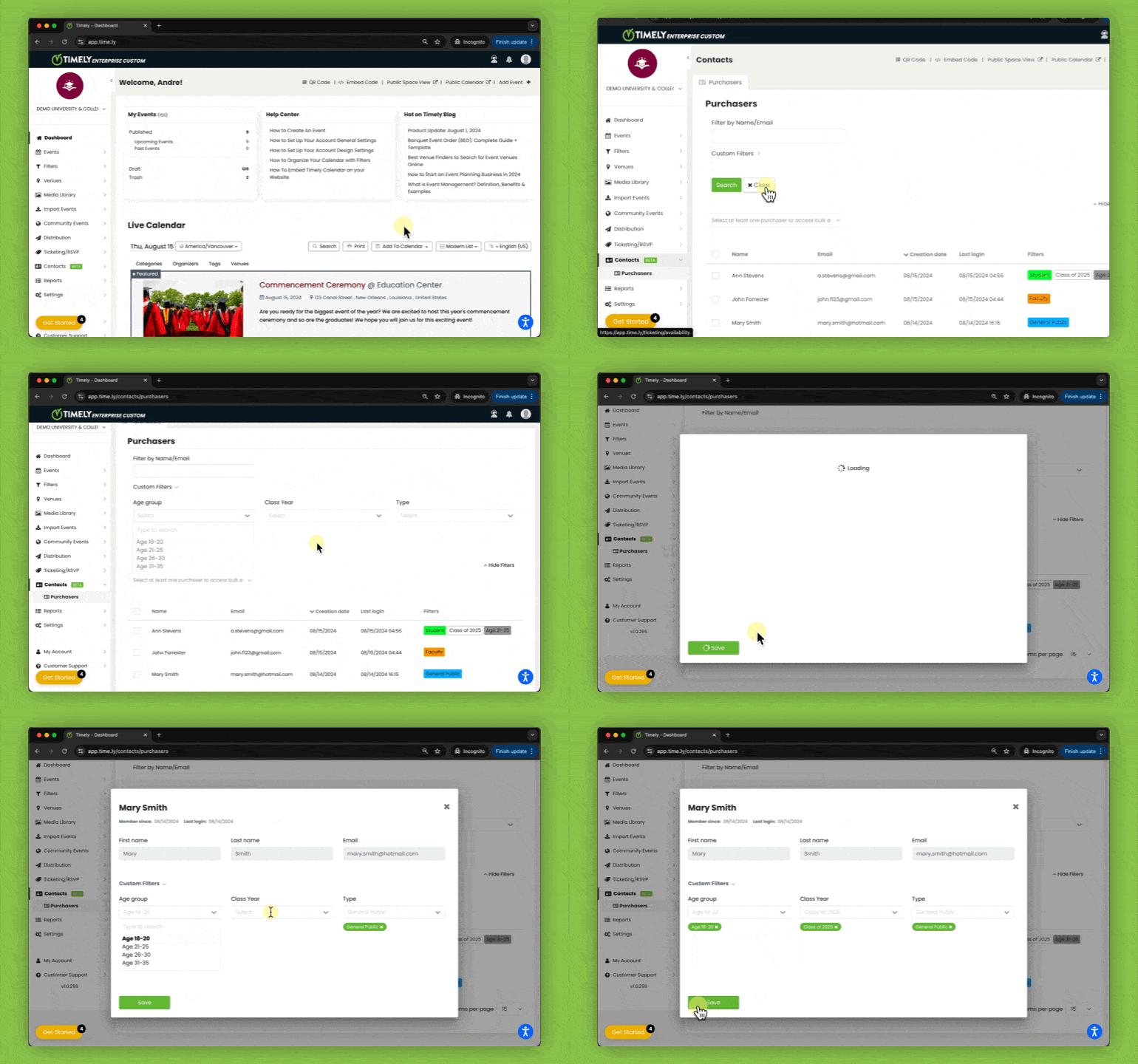
- After finding a contact, click their name to open the Contact Details page.

3. How to Create Filters for Contacts
Filters help you organize contacts into meaningful groups, for example, Vendors, Students, or Press. Once created, filters can be used to segment audiences or streamline communication.
- Log in to your Timely account.
- Navigate to the Filters menu and go to the Filters area.
- Click on +Add Filter

- Name your filter and under Used in select Contacts from the dropdown menu.
- Click Save to create the new filter.
- Within the new filter tab, click on “Add Item” to create filter items. You can add a Name and set a color for each filter item.
4. How to Assign Filters for Contacts
After creating your filters, you can assign them to specific contacts or groups of contacts. This helps you quickly identify and manage contacts based on shared characteristics.
- Log in to your Timely account.
- Navigate to the Contacts and click on All Contacts, Purchasers, or Submitters.
- Click on a contact’s name to open their profile and assign filters individually.

Alternatively, select multiple contacts using the checkboxes next to their names. The bulk actions dropdown will appear at the bottom of the screen.From the dropdown, choose Assign Filters to categorize several contacts at once. You can also combine multiple filters to refine your audience further.

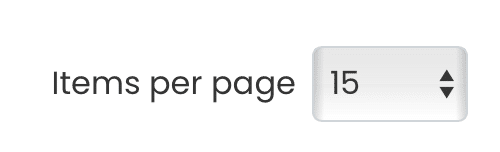
Tip: When performing bulk actions on multiple contacts, you can increase the Items per page setting at the bottom of the list to easily browse larger contact lists.
5. How to Export Contact Information
Exporting your contacts lets you use their data outside Timely, for example, for reporting, importing into CRM tools, or creating mailing lists.
- Log in to your Timely account.
- Navigate to Contacts and choose either All Contacts, Purchasers, or Submitters.
- From the list of ticket buyers, select the contacts you wish to export.
- Select the contacts you want to export using the checkboxes.
- From the bulk actions dropdown, choose Export to CSV.
Your file will download automatically, containing the selected contact information in a standard CSV format compatible with spreadsheet and CRM applications.

Setting up Timely’s Contacts Management module enhances how you handle members, ticket buyers and event submitters. It simplifies data collection, improves segmentation, and provides actionable insights into your community.
By viewing, filtering, and exporting contact data, you can:
- Streamline communications with different contact types.
- Identify key audiences for promotions or event invitations.
- Track and manage user engagement across events and submissions.
With these features, you can provide a more personalized experience for members, purchasers and submitters, while optimizing your workflow and keeping your contact database organized.
Need Additional Help?
For further guidance and support, please visit our Help Center. Additionally, if you have any inquiries or need assistance, don’t hesitate to contact our customer success team by opening a support ticket from your Timely account’s dashboard.
Moreover, in case you require additional assistance in implementing and using Timely event management system, we are happy to assist. Explore all the professional services we offer, and feel free to get in touch with us today!