
With Timely, you can easily track and manage membership sales Orders from a single location, whether memberships were purchased online or onsite. The Membership Orders page provides a centralized view of all membership purchases, helping you monitor sales, search for specific orders, print invoices, and quickly access important customer information. Learn in this post how it works.
1. What is the Membership Orders Page?
The Membership Orders page is a dedicated section within your Timely account that provides a centralized view of all membership sales. It consolidates essential Orders information, giving you a quick overview of every membership purchase made through your website or or internally within the dashboard Point of Sale (POS) functionality.
2. Benefits of Using the Membership Orders Page
- Centralized Membership Sales Tracking: View every membership purchase in one place, including both online purchases and onsite POS sales.
- Quick Orders Search: Easily locate specific orders using filters such as purchase date, expiration date, member name, email address, or Orders ID.
- Complete Membership Information: Instantly review the membership plan purchased, Orders status, purchase price, customer information, purchase date, and expiration date.
- Easy Invoice Access: Open any Orders to review its details and print an invoice whenever needed for your records or customer requests.
- Eliminate Paper Records and Spreadsheets: Keep all membership sales organized within your Timely dashboard instead of relying on external spreadsheets or manual tracking methods.
Please note that the Membership Orders page is designed for tracking and reviewing membership sales. Membership plan configuration and member management are handled in their respective sections of the software.
3. How to Track and Manage Membership Sales Orders
The Membership Orders page makes it easy to monitor membership purchases, verify customer information, and review Orders details from a single dashboard.
3.1 Accessing the Membership Orders Page
Follow the steps below to access your membership orders:
- On the left-hand menu, click Membership.
- Open the Orders tab.

3.2 Using Membership Order Filters
Use the available filters to quickly find specific membership purchases. You can search by:
- Purchase Date
- Expiration Date
- Member’s Name or Email
- Orders ID

3.3 Reviewing Membership Order Information
Upon accessing the Membership Orders page, you will have access to the following information:
- Orders ID: A unique identification number assigned to each membership purchase.
- Orders Status: Displays the current status of the purchase, such as Purchased.
- Membership Plan: Shows which membership plan the customer purchased.
- Price: Displays the amount paid for the membership.
- Member’s Name and email: View the member’s name and email address associated with the Orders .
- Purchase Date: Shows when the membership was purchased.
- Expiration Date: Displays when the membership expires or indicates Never for lifetime memberships.
3.4 Viewing and Downloading Order Details
Hover over a membership order to display the available quick action icons. From there, you can:
- Click Show Receipt to view the order summary.

- Click Download PDF to download the order information as a PDF file.

- Click Download CSV to download the order information as a CSV file.
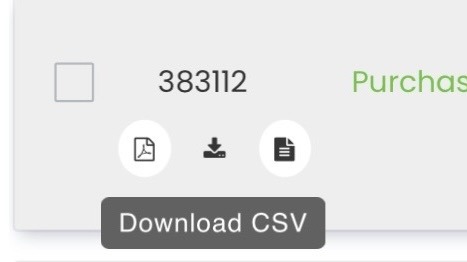
Membership Orders Quick Actions
When you click Show Receipt, the order details window opens. The order details include:
- Membership purchased
- Quantity
- Item subtotal
- Taxes, when applicable
- Total amount paid
From the order details window, click Print Invoice to generate a printable invoice for your records or to provide to the customer.

3.5 Exporting Multiple Orders
For multiple orders, select one or more checkboxes, then use the bulk actions menu to export selected orders to CSV or PDF.
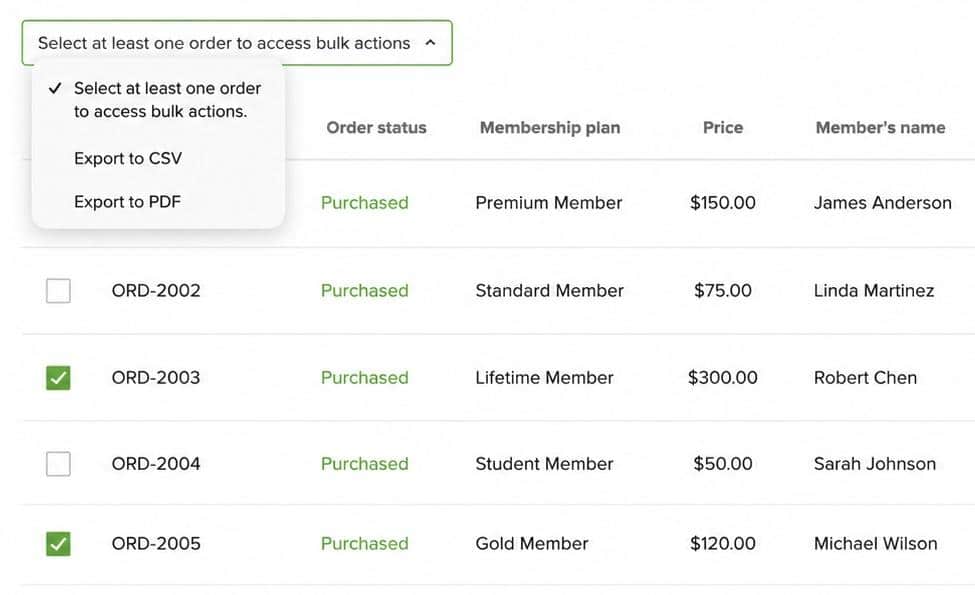
The Membership Orders page gives you complete visibility into your membership sales, making it easy to search for purchases, review customer information, access receipts, download order records, export selected orders, and print invoices whenever necessary.
With both online and onsite (POS) membership sales displayed in one centralized location, managing your membership program becomes faster and more efficient.
Need Additional Help?
For further guidance and support, please visit our Help Center. Additionally, if you have any inquiries or need assistance, don’t hesitate to contact our customer success team by opening a support ticket from your Timely account’s dashboard.
Moreover, in case you require additional assistance in implementing and using Timely membership management system, we are happy to assist. Explore all the professional services we offer, and feel free to get in touch with us today!