
In today’s dynamic event landscape, effective communication is crucial. Event notifications keep attendees informed with reminders, updates, and post-event messages. This improves their overall experience and engagement.
Timely platform lets organizers send both automated and manual notifications to event registrants. Follow this guide to set up event notifications that keep your audience informed.
1. Benefits of Using Event Notifications
Event notifications help organizers communicate effectively and keep attendees engaged before, during, and after an event.
- Increased Engagement: Timely reminders keep events top of mind, reduce no-shows, and encourage higher participation.
- Better Attendee Experience: Attendees receive clear details, real-time updates, and post-event messages that create a smooth, connected experience.
- Real-Time Change Alerts: Notifications instantly inform attendees of schedule changes, location updates, or cancellations, reducing confusion.
- Stronger Post-Event Connection: Post-event notifications enable follow-ups, feedback requests, participation certificates, and next steps, extending engagement beyond the event.
- Improved Communication Efficiency: Automated and in-bulk manual notifications save time for organizers while ensuring consistent, reliable messaging.
2. Sending Event Reminders for Upcoming Events
To set up event reminders, follow these simple steps:
On the event screen, go to the Cost and Tickets section. Choose the appropriate ticketing option, such as Event Registration / RSVP or Event Ticket, then create your RSVP/Ticket type.
- Log in to your Timely account.
- In the main menu, create a new event or edit an existing event.

- In the ticket type section, just after the “Add Field” button, you will see the Notification area, as highlighted in the Scroll down to Notify attendees about the event and select the Before Event checkbox to activate reminders.
- Click Add notification. A new section will appear where you can set how many days before the event start date the reminder should be sent to registered attendees.Repeat Add notification to schedule as many reminders as you need.

- To delete a reminder, click the red minus icon beside it. To disable all reminders, clear the Notify attendees checkbox.
If you need more information on setting up RSVP or ticket options, visit How to Set Up Cost Tickets for Events.
3. Sending Event Notifications for Event Changes
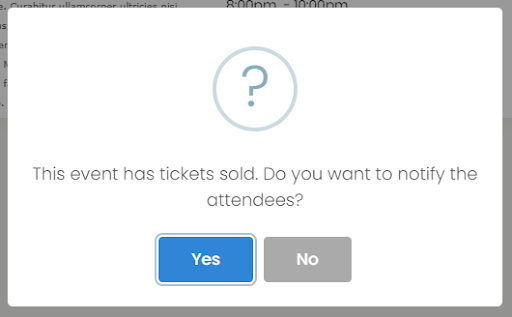
When you update event details such as date, time, or location, Timely helps you notify attendees automatically. This is how it works:
- Update the event details as needed.
- If the event has any registrants, a pop-up appears, asking whether you want to notify the attendees.
- Select Yes to send an automatic email notification
- Select No if you prefer not to notify them at that time.
4. Sending Post Event Notifications
Keeping in touch with your audience after the event is a great way to thank attendees, collect feedback and share certificates or extra resources.
To do this, first you will need to create a custom template for your post-event notification flow.
Once you have your custom templates configured:
- After creating your ticket/ RSVP type, under “Notify attendees about the event” select the option “After event.”
- Go to the event you would like to set the notification for and open the Cost and Tickets section.

- Click +Add notification and select the appropriate custom email template.

- Insert how many days after the event you would like the notification to be sent.
- Save your event to apply the changes.
Now your custom follow-up email will go out automatically to every attendee after the event ends.
5. Customizing your Event Notification Email Template
Timely allows you to customize email templates to align with your branding and tailor messages sent to attendees. For step-by-step instructions, refer to the guide How to Customize Event RSVP and Ticket Email Templates.
With event notifications, attendees stay informed and engaged throughout the entire event journey, from registration to post-event follow-up. By following these steps, you can ensure consistent communication and deliver a professional event experience.
Need Additional Help?
For further guidance and support, please visit our Help Center. Additionally, if you have any inquiries or need assistance, don’t hesitate to contact our customer success team by opening a support ticket from your Timely account’s dashboard.
Moreover, in case you require additional assistance in implementing and using the Timely event management system, we are happy to assist. Explore all the professional services we offer, and feel free to get in touch with us today!